Used gaming laptops can place stronger graphics performance within a smaller budget, but they have usually operated under more heat and electrical load than ordinary office machines. Condition therefore deserves the same attention as the specification. Buyers should inspect the exact unit, not rely only on a clean product photograph or a general description of the model series.
Before shortlisting, use a complete gaming laptop selection guide for Malaysia to set the required performance level. The checks below then help determine whether a particular used unit is capable of delivering that performance without an immediate repair or upgrade.
Confirm the exact model and components
Record the full model code and serial number where appropriate. Gaming laptop families can include many configurations with different displays, processors, graphics chips, memory and storage. Compare the operating system's hardware information with the seller's listing. The GPU should appear correctly in Device Manager and the relevant graphics software, while the processor and installed memory should match the quotation or invoice.
Check whether memory or storage has been changed from the original configuration. Upgrades are not automatically a problem, but the components should be suitable and properly installed. Ask whether original parts are included and whether the machine has been opened for repair, cleaning or thermal servicing.
Inspect the chassis before starting tests
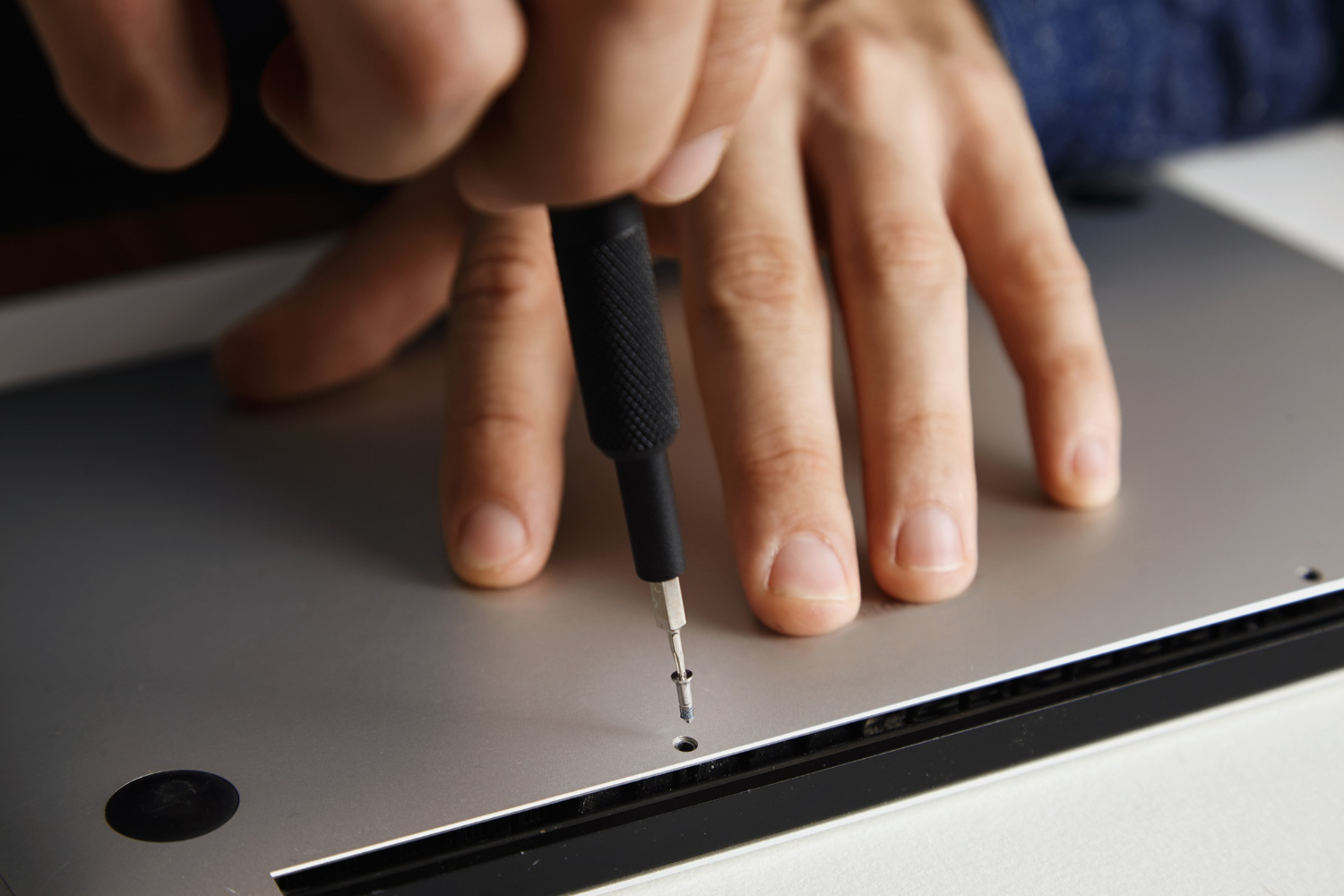
Look across the lid, palm rest and underside under good lighting. Deep dents, cracked corners, missing screws, enlarged screw heads and broken vent sections may indicate drops or repeated repairs. Open and close the display slowly. Hinges should move evenly without separating the screen housing or lifting the keyboard deck.
Check rubber feet, ventilation openings and intake mesh. A laptop that cannot sit level or draw air correctly may run hotter. Smell near the exhaust and power connector for signs of burnt electronics or heavy smoke exposure. Cosmetic marks can be acceptable at the right price, but structural damage needs a clearer assessment.
Test the screen and controls
Display solid white, black, red, green and blue images at normal brightness. Look for dead or stuck pixels, bright pressure spots, flicker, uneven lighting and image retention. Move the lid gently through its usable range and watch for intermittent picture loss, which may point to a cable or hinge-related problem.
Test every keyboard key, including function controls, lighting and the number pad where fitted. Check the trackpad across its full surface and confirm physical or haptic clicks. Connect headphones and test speakers, webcam and microphone. These smaller faults are easy to overlook during a short gaming demonstration.
Check ports, wireless and the charger
Use a known working device to test USB ports and a suitable monitor or television for video output. Check the network socket, audio jack, card reader and charging connection where relevant. Wireless tests should cover both Wi-Fi and Bluetooth, preferably away from the seller's router to reveal weak reception.
The power adapter should provide the voltage and wattage specified for the laptop. An underpowered or poor-quality replacement can reduce performance, become excessively hot or allow battery discharge while gaming. Inspect the cable, plug and adapter casing for repairs, exposed wire or looseness.
Measure battery and storage health
A Windows battery report can show design capacity, current full-charge capacity and usage history. Battery wear is normal, but it changes the value and portability of the unit. Confirm that the battery charges consistently and that the laptop does not switch off immediately when disconnected.
Review the SSD's health information and available capacity. Warning indicators, high error counts or unstable transfer performance justify further investigation. Copying a reasonably large file can expose connection or drive problems that a quick startup will not reveal. Buyers should also confirm that storage is securely erased and the operating system is legitimately activated.
Run a sustained performance test
Use a game or benchmark that loads both the processor and graphics system for long enough to reach normal operating temperature. Watch frame rate, temperatures, clock behaviour and fan response. The system should not show artefacts, crashes, sudden shutdowns or severe performance loss. Compare results with credible reviews of the same laptop configuration, allowing for differences in settings and ambient temperature.
Listen for grinding or irregular fan noise. Very high temperatures do not identify a single cause; dust, dried thermal material, damaged fans, unsuitable settings or a warm test environment may contribute. Ask the seller to explain any abnormal result rather than assuming a simple cleaning will solve it.
Put all promises in the order record
Confirm the exact model, serial number, included charger, accessories, known defects, battery condition, warranty period and return process in writing. Determine whether the warranty covers the GPU, motherboard, display, keyboard, storage and battery, as coverage may differ. For delivered units, record the unboxing and test promptly within the stated inspection period.
A strong used purchase is not necessarily the cleanest or cheapest unit. It is the machine with verified specifications, acceptable wear, stable sustained performance and support terms that match its remaining risks. Leave budget for memory or storage only when those upgrades improve a machine that is already in sound condition.
Buyer references
- Microsoft: caring for your battery in WindowsGenerate and review a battery report before purchase where possible.
- Microsoft: device performance and healthCheck the built-in device health report during inspection.
- Malaysia Consumer Protection Act 1999Review statutory consumer guarantees and seller obligations that may apply.