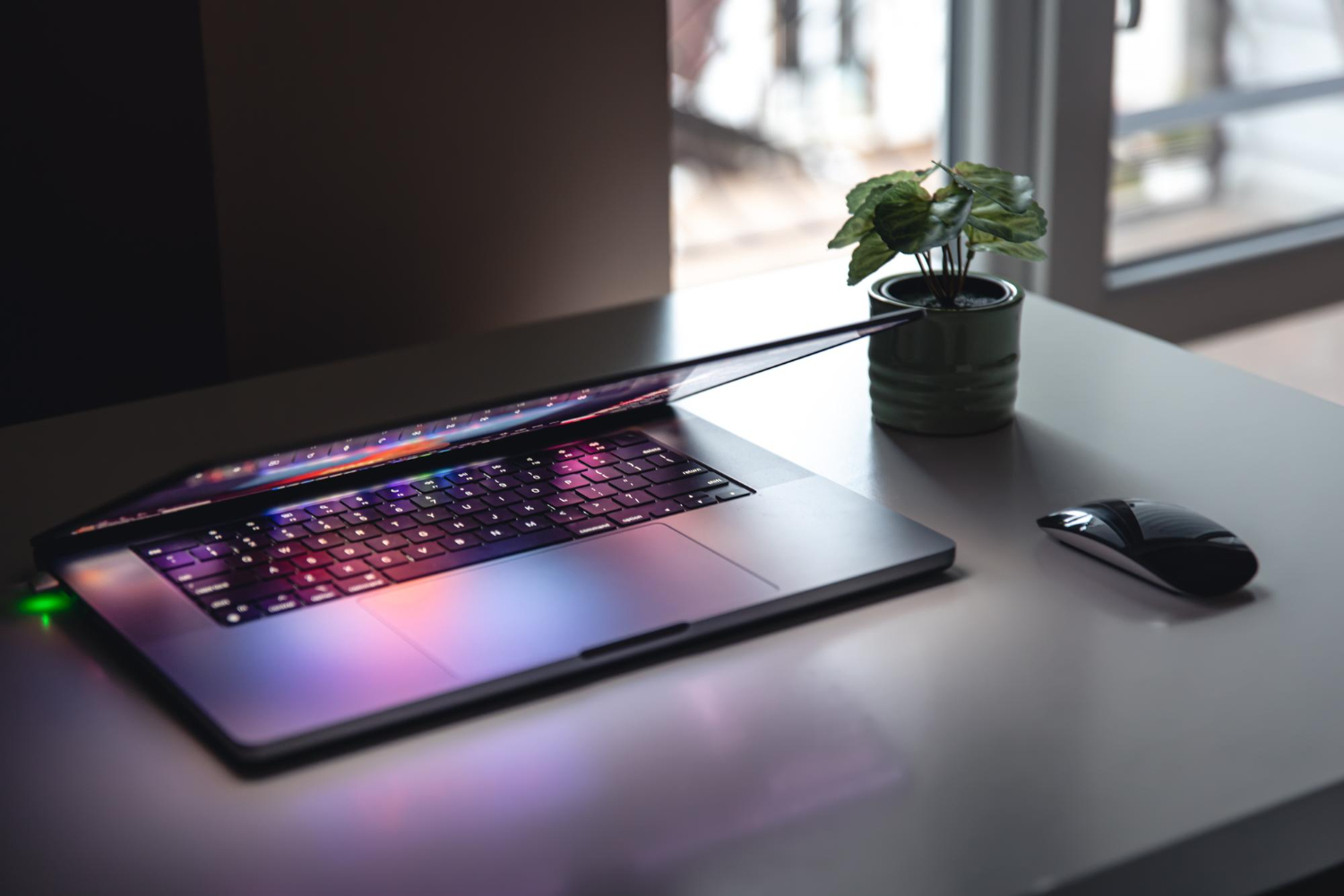
A fast graphics processor cannot correct a dim screen, uncomfortable keyboard or missing connection that affects every session. These parts are also difficult or expensive to change later. Buyers should evaluate them alongside performance, particularly when one laptop will handle gaming, study, work and travel.
The complete Malaysian gaming laptop buying guide explains how these checks fit into the larger decision. Here, the priority is the direct interface between the user and the machine.
Choose resolution for the screen size
Full HD and the related 16:10 resolution remain practical because they are easier for a mobile GPU to drive. Higher resolutions can improve text clarity, detailed images and creative work, but demanding games require more graphics performance. Buyers should compare the native resolution, screen size and expected game settings as one decision.
Aspect ratio affects workspace. A 16:10 panel provides additional vertical room for documents and editing, while 16:9 remains common for games and video. Check whether operating-system scaling makes applications comfortable at the panel's native resolution.
Look beyond refresh rate
A 144 Hz, 165 Hz or faster screen can show motion more smoothly when the system produces sufficient frames. Refresh rate alone does not describe pixel response, overshoot or input delay. A slow panel may leave visible trails even with a high number printed on the specification sheet.
Adaptive synchronisation can reduce tearing when frame rate varies. Confirm whether it works on the internal display and through intended external-monitor connections. Competitive buyers should compare measured display behaviour from reviews of the exact panel or laptop model, not the product family generally.
Check brightness and colour
Brightness matters in offices, classrooms and rooms with large windows. A screen that appears acceptable in a dark shop may become difficult to use in daylight. Anti-glare finishes can reduce reflections, although image appearance differs from a glossy panel.
Colour coverage and accuracy are important for photography, design and video work. Gaming alone may not require professional accuracy, but very limited colour can make the display look dull. Ask whether the panel specification differs between configurations because manufacturers sometimes use several screen options under one model name.
Inspect a used display carefully
Show full-screen solid colours to identify dead pixels, bright spots, uneven backlighting, tint and image retention. Test several brightness levels and move the lid slowly while watching for flicker. Pressure marks, liquid damage and cable faults can be easier to see on simple backgrounds than during a colourful game.
Check the bezel and hinge area for separation. A damaged hinge can place stress on the panel and cable. Clarify whether display faults are covered by the seller warranty and whether a specific dead-pixel policy applies.
Use the keyboard before deciding
Keyboard layouts vary in key size, travel, spacing and placement. Compact machines may reduce arrow keys, remove the number pad or relocate frequently used controls. Try movement keys, modifiers, function keys and common shortcuts. A layout that causes mistakes during a short test is unlikely to improve during a long session.
Backlighting can be single-colour, zone-based or individually controlled. Confirm brightness levels and software support if lighting matters. More importantly, test every key in a keyboard-checking utility. Look for repeated inputs, missed presses, looseness and unusual noise, especially on heavily used gaming keys.
Test the trackpad, sound and camera
Many players use a mouse and headset, but the built-in controls still matter away from a desk. Check pointer tracking, gestures, clicks and palm rejection. Speakers should be clear at moderate volume without rattling. Test the headphone jack, microphone, camera and privacy controls for calls and study.
These features may not affect frame rate, yet replacing them can require significant disassembly. Their condition should influence the price of a used unit.
Map every required connection
List the mouse, keyboard, headset, storage, network cable, monitor and charging devices that will connect regularly. Compare the number, type and placement of USB ports. Check whether USB-C supports data only, display output, charging or higher-speed standards; identical-looking ports can have different capabilities.
For external displays, confirm the version and supported output of HDMI, DisplayPort over USB-C or other connectors. Determine whether they connect to integrated or dedicated graphics. Buyers using a dock should verify compatibility and understand that many gaming laptops still need their full-power adapter under load.
Compare the complete working setup
A fair quotation comparison includes any adapters, dock, external webcam, replacement keyboard or monitor needed to make the laptop suitable. The cheaper machine may lose its advantage when essential connections or usable screen quality are missing.
Prioritise the features that cannot be upgraded: panel characteristics, keyboard layout, port selection, hinge design and chassis size. Memory and storage may be adjustable on many models, but buyers live with the interface for the full ownership period. A balanced laptop should support both the games and the ordinary tasks surrounding them.
Buyer references
- Microsoft: change the refresh rate in WindowsVerify available refresh-rate settings for the installed display.
- Microsoft: change screen resolution and layoutConfirm native resolution and display configuration during testing.